Freeze SQL service manually using WinDbg
Freeze SQL service manually using WinDbg
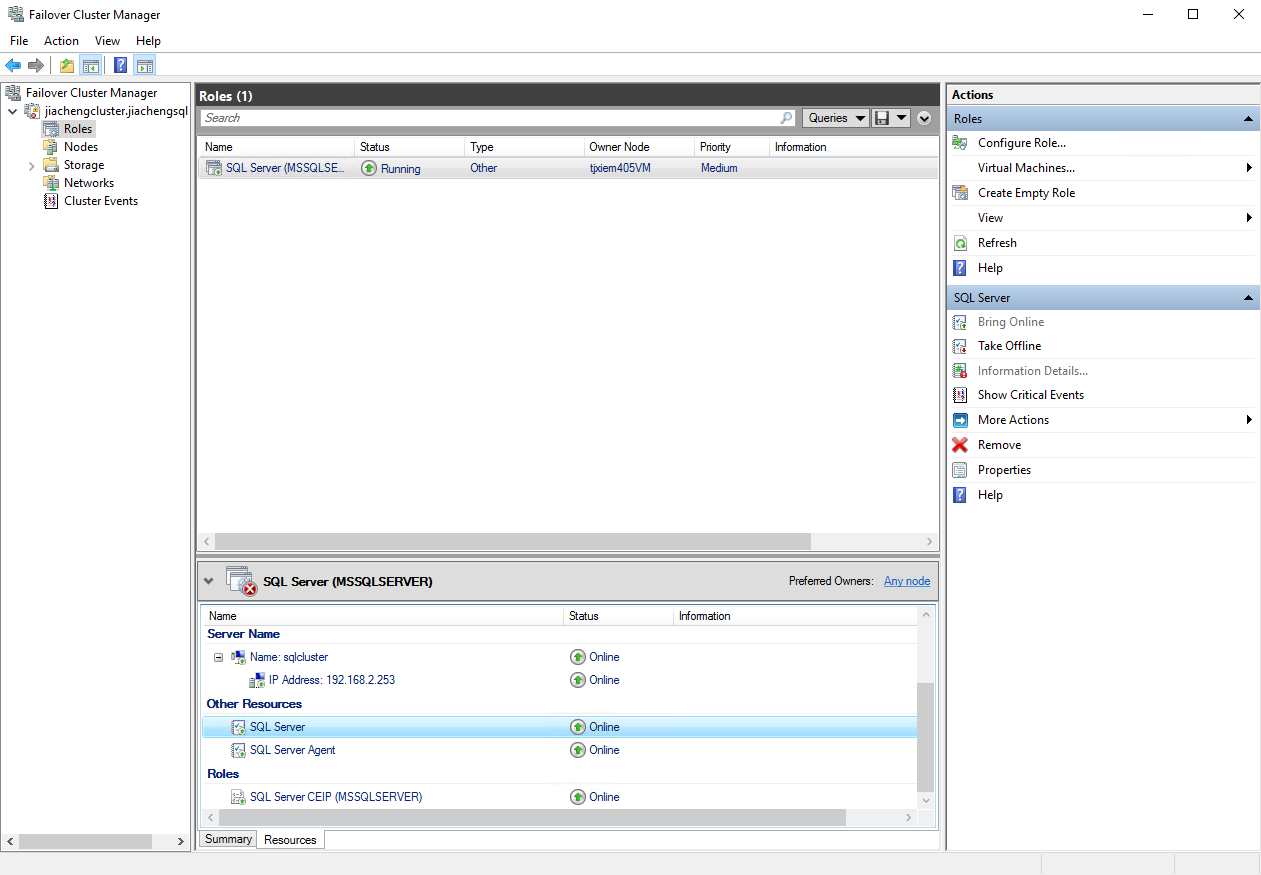
Currently, the SQL failover cluster works normally.
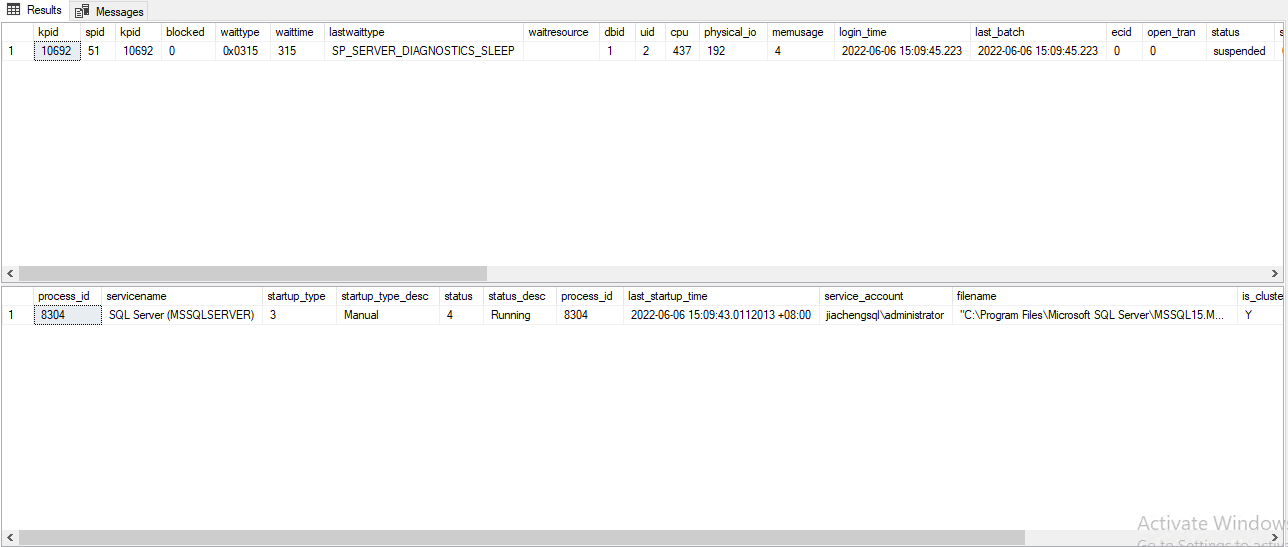
In the SSMS (Microsoft SQL Server Management Studio), the following query returns the process id and other information related to the SQL server service.
1 | |
Note that the thread ID here is the id for the system, we need to convert the id before using it.
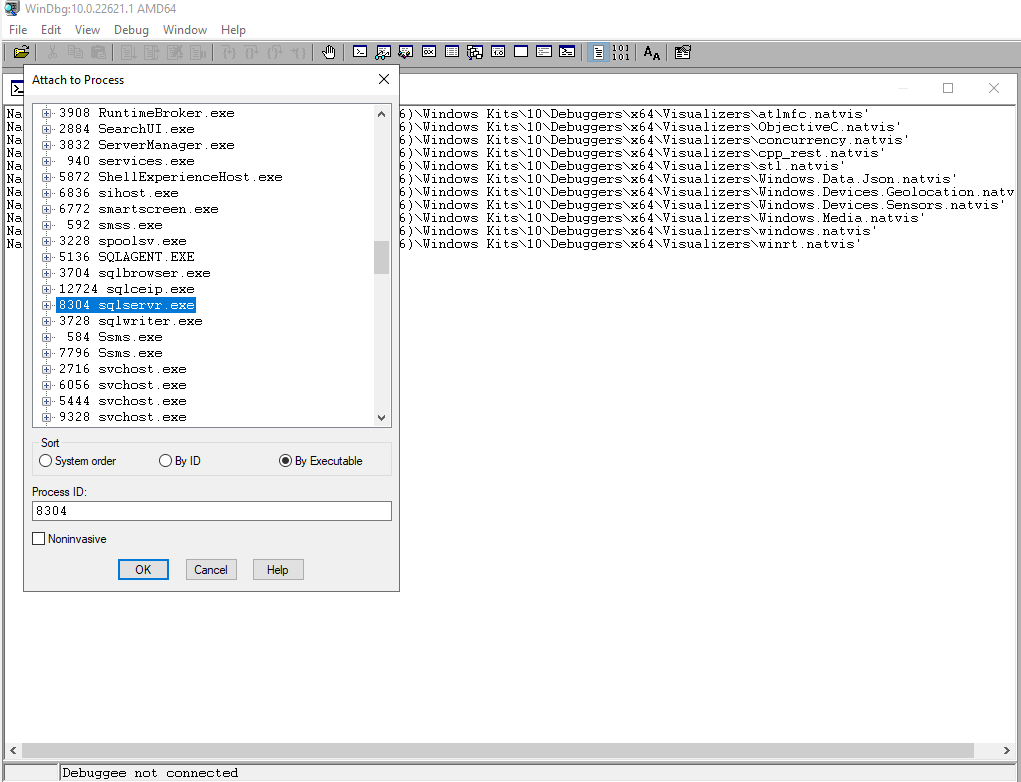
In WinDbg, attach to the sqlserver.exe
process. As you can see, the process id is the same as the query result.
Note that make sure the WinDbg is running on the node server that is the
current host of the cluster, or you may not find the
sqlserver.exe in the list.
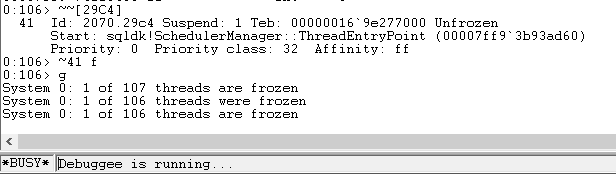
Convert the thread ID into hexadecimal, then enter
~~[HEX Thread ID] to get the thread ID (debug ID) in the
debugger. Then we can freeze the SQL service by
~Debug ID f.
Now, we observe that the SQL service is frozen.
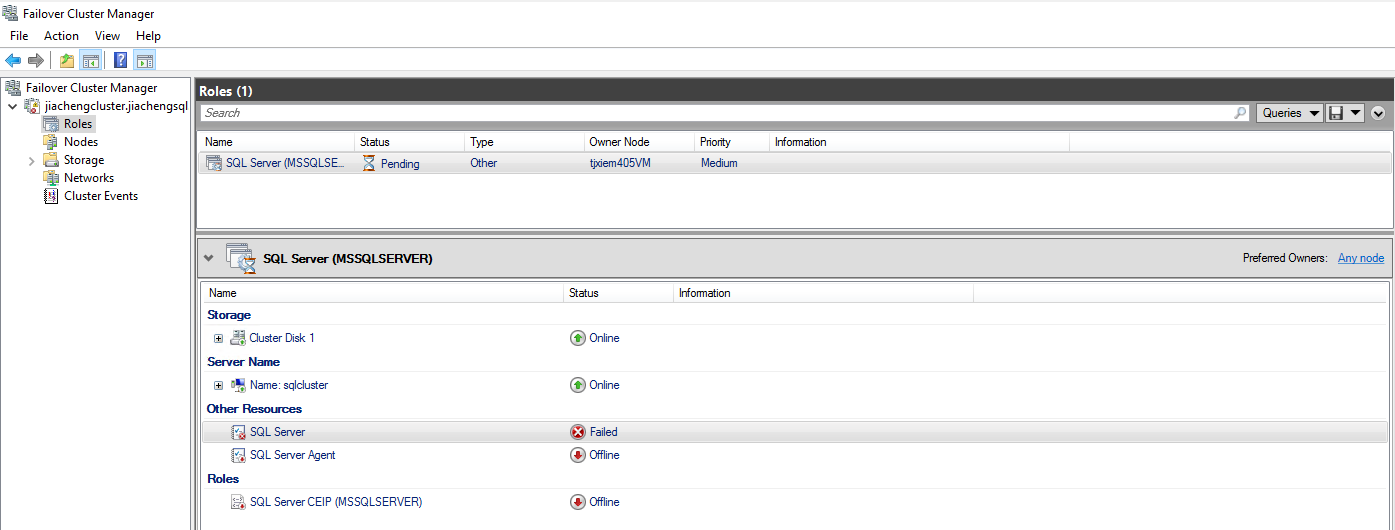
To resume the service, detach the process from the debugger. Then the SQL server will be brought online.